 RouterLightsFix
Xfinity WiFi Password: How to Find, Change or Reset It
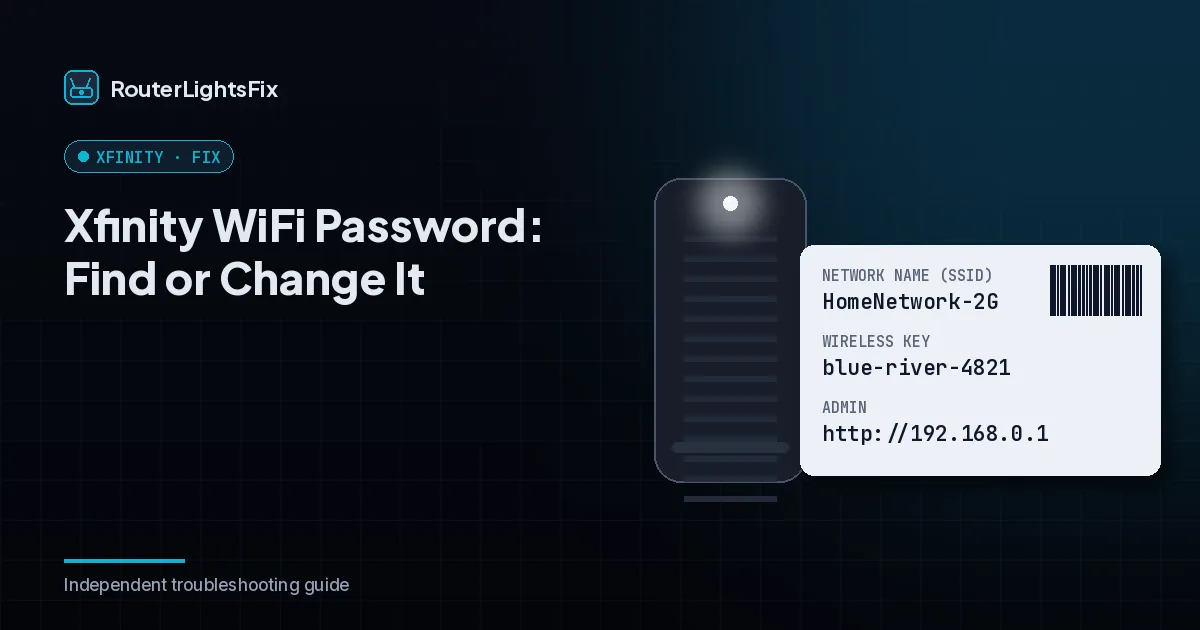
Your Xfinity WiFi password is easy to find or change, and worth updating if you have shared it widely or never changed the default. This guide covers where to find it, how to change the password and network name, and what to do when devices will not reconnect.
Menu names in the Xfinity app and website change from time to time, but the WiFi settings live under your internet or WiFi section.
Where to find your Xfinity WiFi password
There are three places to look. If you never changed it, the default network name and password are printed on the label on your gateway. If you changed it, the current password is stored in the Xfinity app and in your online account under your WiFi settings. If you have lost both, a factory reset of the gateway returns the password to the label default (see how to reset an Xfinity router).
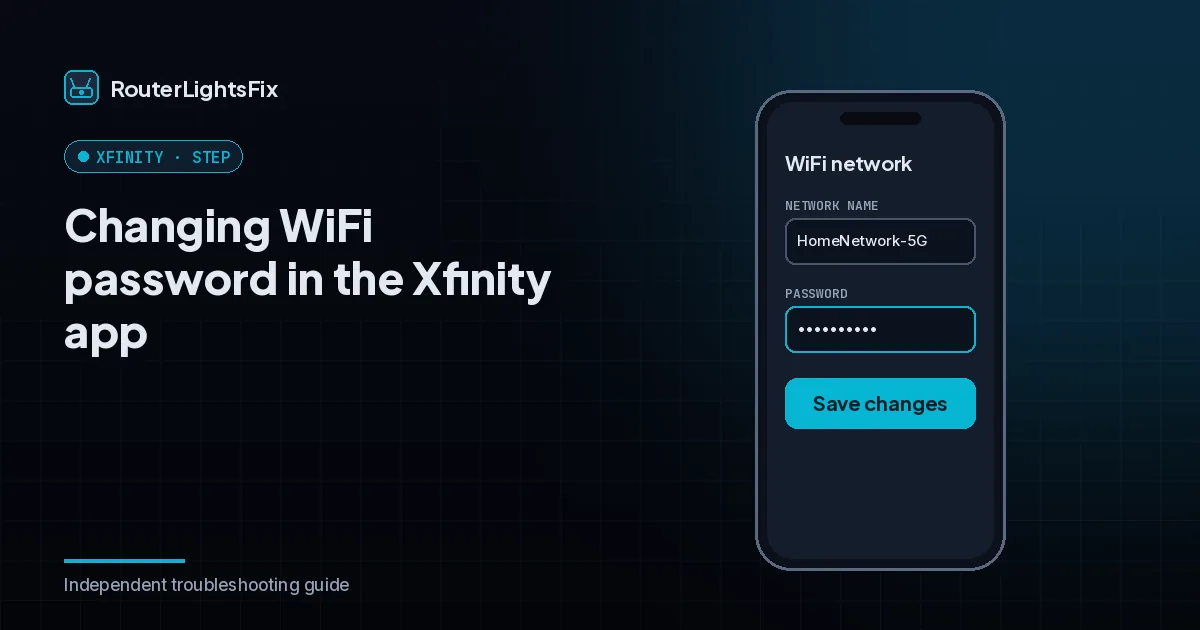
How to change your Xfinity WiFi password in the app
Open the Xfinity app and sign in with your Xfinity ID.
Go to the WiFi or Internet section.
Open View WiFi Network (or your network settings).
Edit the password and save.
Reconnect your devices with the new password.
How to change it on the website
Sign in at xfinity.com with your Xfinity ID.
Open your account and go to Internet, then WiFi settings.
Choose your network and edit the network name or password.
Save and wait a minute for the gateway to apply the change.
How to change the Xfinity WiFi name
The same settings screen lets you edit the network name, also called the SSID. Avoid using your address or full name. If your gateway shows separate 2.4 GHz and 5 GHz networks, you can rename each one, or combine them if the app offers that.
Xfinity WiFi hotspots are different
Xfinity also runs public hotspots that appear as separate networks, such as xfinitywifi. These are not your home network and generally use a sign-in with your Xfinity ID rather than your home password. Changing your home password does not affect them.
Devices will not reconnect
After a change, every device loses the network. Forget the network on each device and add it again with the new password. Remember smart plugs, cameras, printers and streaming sticks; some need to be set up again through their own app.
Pick a strong password
Use at least 12 characters and a passphrase made of several unrelated words plus a number. Avoid names, birthdays and the default label password, and do not reuse a password from another account.
The bottom line
Check the label or the app to find it, change it in the app or on the website, and reconnect your devices. A factory reset always returns you to the label password.
Frequently asked questions about xfinity wifi password
Where is my Xfinity WiFi password?
If you never changed it, it is printed on the label on your gateway. If you changed it, it is in the Xfinity app or your online account under your WiFi settings.
How do I change my Xfinity WiFi password?
Open the Xfinity app or sign in at xfinity.com, go to WiFi settings, choose your network, edit the password and save. Then reconnect your devices.
How do I change my Xfinity WiFi name?
The same WiFi settings screen lets you edit the network name. Save the change and reconnect your devices to the new name.
What is the password for xfinitywifi hotspots?
Xfinity public hotspots are separate from your home network and generally use a sign-in with your Xfinity ID rather than your home WiFi password.
What if I forgot my password and cannot sign in?
Use the label on the gateway for the default, or factory reset the gateway to return to it. Recover your Xfinity ID from the sign-in page to manage settings again.