 RouterLightsFix
How to Find Your WiFi Password on Windows, Mac, iPhone and Android
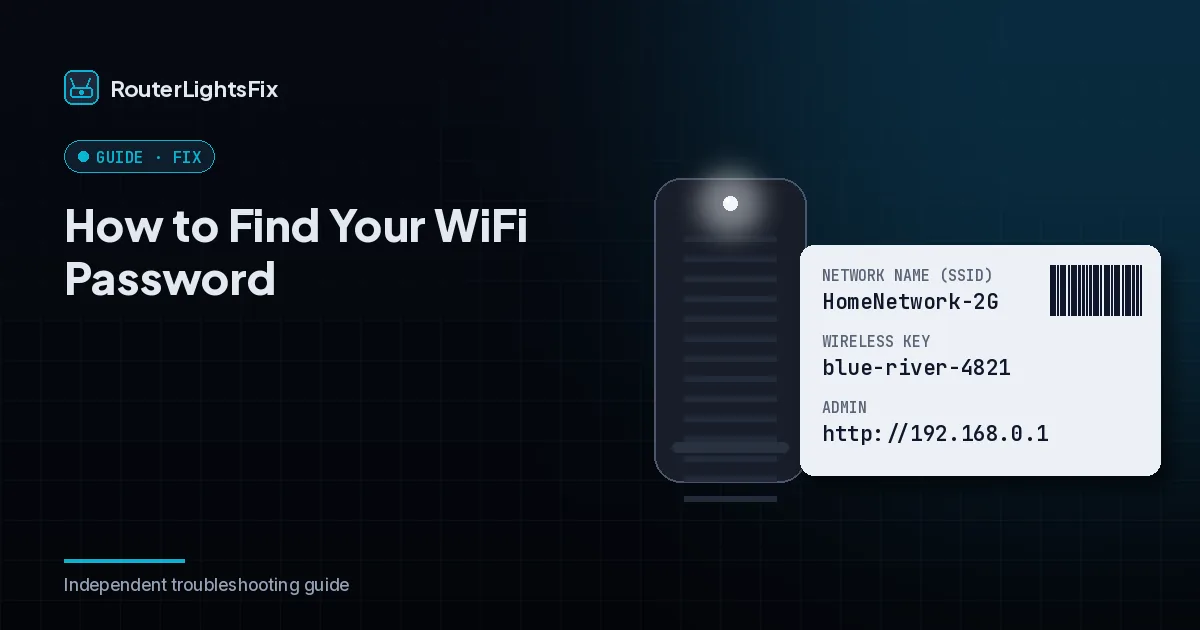
Forgotten WiFi passwords are common, and you can usually recover yours without a reset. The password lives in a few predictable places: on the router, in the router's settings, and on any device that is already connected. Menus differ between versions, so treat the steps below as a guide.
1. Check the label on your router
If you never changed the password, the default network name and password are printed on a label on the router, often on the back or bottom. It is usually labeled Wi-Fi password, network key or passphrase.
2. Check your provider's app or account
If your router is provider-managed, the provider's app often shows the current WiFi name and password in the network settings. Our guides for Spectrum and Xfinity show where.
3. Look in the router settings
Connect to the router and open its admin page (see how to log into your router).
Sign in and open the Wireless or WiFi settings.
The password is shown in the security or passphrase field, sometimes hidden behind a show or reveal option.
4. Find it on a connected Windows PC
Open Settings, then Network and internet.
Open Advanced network settings and more network adapter options, or the WiFi properties.
Right-click your WiFi network, choose Status, then Wireless Properties.
Open the Security tab and check Show characters. Administrator access is required.
5. Find it on a Mac
Open Keychain Access.
Search for your network name.
Double-click it and check Show password. You will be asked for your Mac password.
6. Find it on an iPhone
On recent versions of iOS, open Settings, then Wi-Fi, tap the info button next to your network, and tap Password; you may need to authenticate with Face ID, Touch ID or your passcode. You can also share the password to a nearby Apple device.
7. Find it on an Android phone
Open Settings, then network and internet or Wi-Fi, tap your connected network and choose Share. The phone shows a QR code and, on many models, the password after you verify.
If you cannot find the password
Change it instead: log into the router or use the provider's app and set a new password (see how to change your WiFi password). If you cannot log in either, a factory reset returns the router to its default label password, but it erases all your settings, so use it last.
Keep it safe
Save it in a password manager and share it with guests through a guest network or a QR code instead of reading it out.
The bottom line
Label first, provider app second, router settings third, then a connected device. Reset only as a last resort.
Frequently asked questions about how to find wifi password
Where can I find my WiFi password?
Check the label on your router for the default. If you changed it, look in your router settings or provider app, or find it on a device that is already connected.
How do I see my WiFi password on Windows?
Open Network settings, find your WiFi network's properties and enable the option to show the characters. It requires administrator access.
Can I see my WiFi password on iPhone?
On recent versions of iOS you can open your connected network in Wi-Fi settings and view the password after authenticating. You can also share it to a nearby device.
Can I see my WiFi password on Android?
Many Android phones let you tap the connected network and share it as a QR code, and some show the password after you verify.
What if I cannot find it anywhere?
Log into your router or use your provider's app. If you cannot, a factory reset returns the password to the label default but erases your settings.