 RouterLightsFix
How to Change Your Spectrum WiFi Password and Network Name
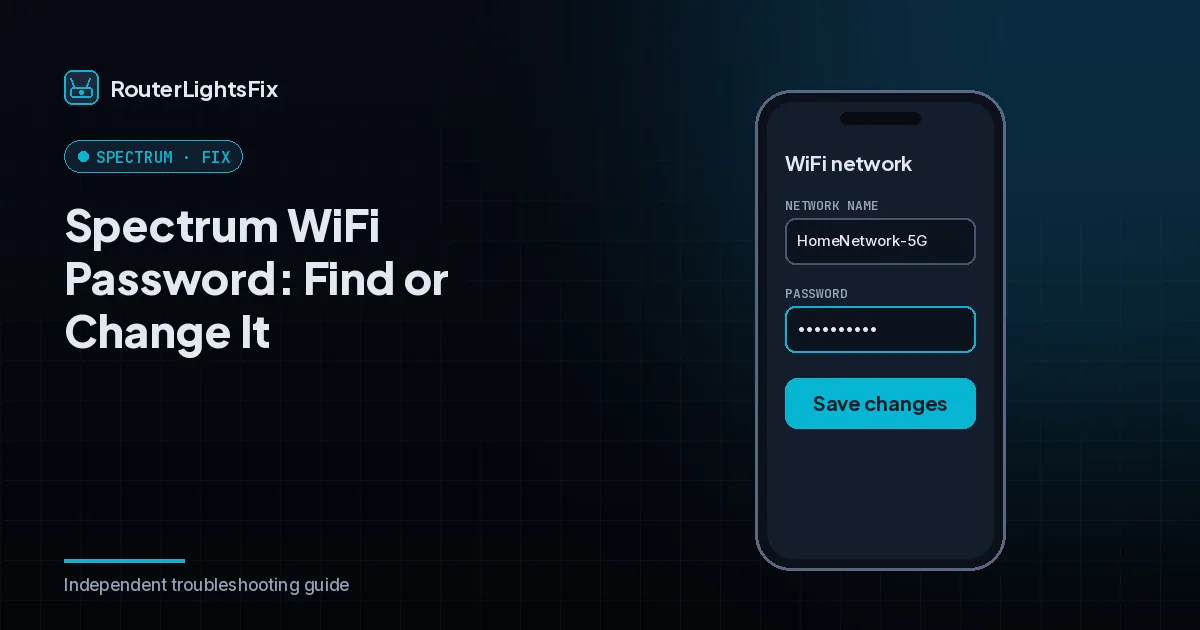
Changing your Spectrum WiFi password takes a couple of minutes and is worth doing when you have shared it widely, when you still use the default from the label, or after a factory reset. The steps below use the My Spectrum app and your online account. Menu names change over time, but the WiFi settings live under your internet service.
Before you start
You need your Spectrum account sign-in. If you are changing the password of the network you are connected to, your device will drop when you save and you will have to reconnect with the new password. Have a list of devices you need to reconnect: phones, laptops, TVs, streaming sticks, printers, smart speakers and cameras.
Change the Spectrum WiFi password in the app
Open the My Spectrum app and sign in.
Go to Services, then Internet.
Open your WiFi network settings (often labeled View or Manage Network).
Edit the password field and enter a new password.
Save the changes and wait a moment for the router to apply them.
Reconnect your devices.
Change it on the Spectrum website
Sign in at spectrum.net.
Open Services, then Internet.
Choose to manage or view your network.
Edit the network name or password and save.
How to change the Spectrum WiFi network name
The same screen lets you change the network name (SSID). Choose a name that does not include your address or full name. If your equipment shows separate 2.4 GHz and 5 GHz networks, you can change each one.
Find your current password
If you never changed it, the default network name and password are printed on the label on your router. If you changed it, the current password is in the app or account settings. If you forgot it and cannot find it, a factory reset returns it to the label default (see how to reset a Spectrum router).
Choose a strong password
Use at least 12 characters and make it a passphrase, for example four or five unrelated words plus a number. Avoid personal details and the label password. Do not reuse the password from another account.
After you change it
Reconnect every device, including the ones you forget, such as smart plugs and thermostats. If a device will not reconnect, forget the network on that device and add it again. If you have WiFi pods, they should follow the router's new settings, but if one drops, restart it.
The bottom line
Change it in the app or your online account, reconnect your devices and use a long passphrase. A factory reset always returns you to the label password.
Frequently asked questions about how to change spectrum wifi password
How do I change my Spectrum WiFi password?
Sign in to the My Spectrum app or your spectrum.net account, open your internet services, find the WiFi network settings, choose a new password and save. Then reconnect your devices with the new password.
Where can I find my current Spectrum WiFi password?
It is in the app or account WiFi settings if you changed it, and on the label of the router if you kept the default.
Can I change my Spectrum WiFi name too?
Yes. The same settings screen lets you edit the network name (SSID) as well as the password.
What happens to my devices after I change the password?
They disconnect and must be reconnected with the new password, including smart home devices, printers and streaming sticks.
What makes a good WiFi password?
Use at least 12 characters, ideally a passphrase of several unrelated words with numbers or symbols. Avoid names, birthdays and the default label password.