 RouterLightsFix
Xfinity Modem and Gateway Lights: What Each Color Means
The single light on an Xfinity gateway is its way of telling you what the device is doing. Understanding it saves time: some patterns mean wait, some mean fix a cable, and some mean call Xfinity. This page explains each color using Xfinity's own light chart as the baseline, plus practical guidance.
Xfinity publishes one chart for its gateways, but models such as the XB6, XB7, XB8 and XB10 can behave a little differently, so use the model label if a pattern does not match.
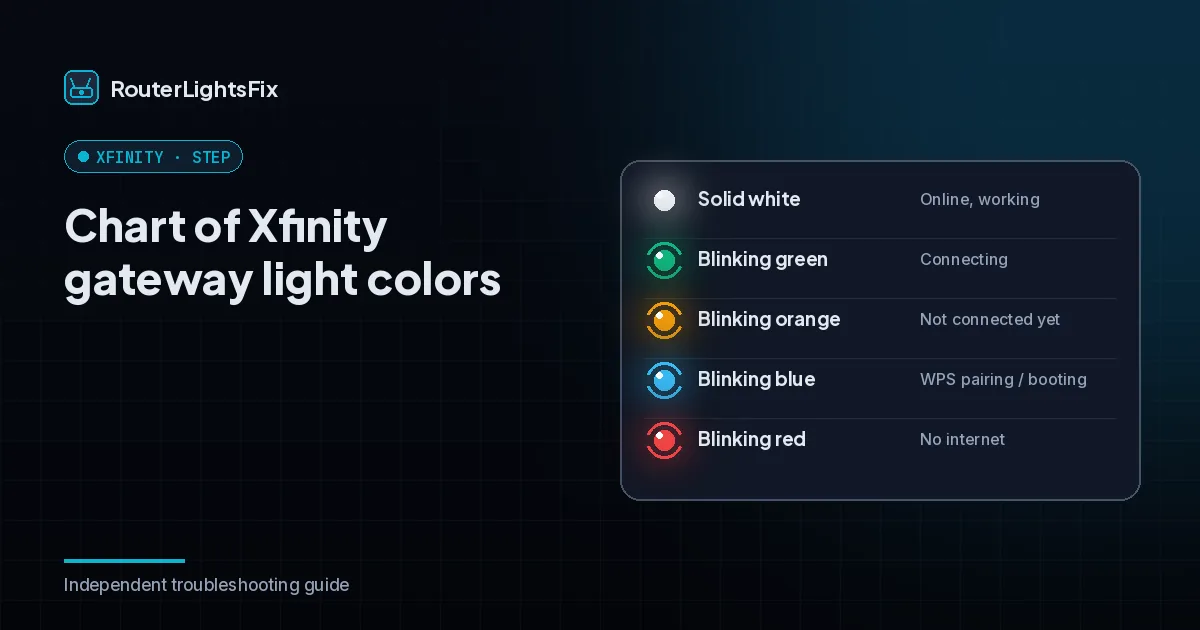
Xfinity gateway light colors at a glance
| Light | Status | What to do |
|---|---|---|
| No light | Off | Check power cord and outlet |
| Steady white (may have a purple tint) | On and operational | Nothing |
| White steady or blinking during activation | Limited, still activating | Finish activation with the Xfinity app |
| Steady red | No internet connection | Restart, check coax, contact Xfinity |
| Blinking blue | WPS mode, pairing a device | Wait for pairing to finish |
| Orange, green or other combinations | Connecting to Xfinity systems | Wait about 15 minutes |
Steady white or blinking white
Steady white is what you want. White blinking is normal while the gateway is being activated for the first time. If it never becomes steady, follow the activation steps in your kit or the Xfinity app, and see our Xfinity WiFi setup guide.
Red light
Xfinity lists a steady red light as no internet connection. Check for an outage in the Xfinity app, tighten the coax cable at the wall and the gateway, and restart the gateway. If the red light stays, contact Xfinity.
Blinking blue
Blinking blue means WPS mode: the gateway is trying to connect another wireless device. It should stop once pairing finishes. Read our guide to an Xfinity router blinking blue if it does not.
Orange and green
Blinking orange is the most common complaint. It usually means the gateway is trying to connect to Xfinity and has not yet succeeded. Blinking green often appears just after orange as the connection completes. Both are covered in detail in our guides to an Xfinity router blinking orange and an Xfinity router blinking green.
The 15-minute rule
Xfinity's guidance for other color combinations is to wait about 15 minutes for the cycle to finish. Do not unplug the gateway during that time, especially during a firmware update.
Quick fixes that solve most light problems
Check the Xfinity app for outages, using mobile data.
Restart the gateway from the app or unplug it for 60 seconds.
Tighten the coax and power cables and remove splitters.
Give the gateway airflow; heat causes connection drops.
Use the app's troubleshoot option to run diagnostics.
If those steps fail, read how to reset an Xfinity router, or if the internet is down while the light looks fine, read Xfinity WiFi not working.
Managing your account
Need to change your network name, find a password, or leave the service? See our Xfinity WiFi password guide and how to cancel Xfinity internet.
The bottom line
White is good, red is no internet, blue is pairing, and everything else is connecting. Wait 15 minutes, then check the outage status and cables before you reset.
All Xfinity guides
Xfinity WiFi Password: Find or Change It
Find your Xfinity WiFi password on the gateway label or in the app, change the password or network name in minutes and fix devices that will not reconnect.
Read the guide →Xfinity Router Blinking Orange
Xfinity router or modem blinking orange means it is still trying to connect. Learn how long to wait and 7 fixes: outage check, restart, cables and more.
Read the guide →How to Reset or Restart an Xfinity Router
Restart or factory reset your Xfinity router using the Xfinity app, a power cycle or the reset button. Learn which to use and what you lose with each.
Read the guide →Xfinity Router Blinking Green
Xfinity router or modem blinking green usually means it is finishing its connection. See how long to wait and the fixes if it never turns steady (2026).
Read the guide →How to Cancel Xfinity Internet
How to cancel Xfinity internet: what to prepare, the ways to cancel, how termination fees can work and how to return equipment without extra charges (2026).
Read the guide →Xfinity WiFi Setup and Self-Install
Set up Xfinity WiFi with the self-install kit: connect the gateway, activate it in the app, connect your devices and fix common first-day problems (2026).
Read the guide →Xfinity Router Blinking Blue
A blinking blue Xfinity router means WPS mode. Learn why it happens, how to finish pairing or stop it, and what to do if the light keeps blinking (2026).
Read the guide →Xfinity WiFi Not Working
Xfinity WiFi not working or dropping? Check for outages, read the gateway light, restart it and fix single-device problems with these 8 clear steps (2026).
Read the guide →Frequently asked questions about xfinity modem lights meaning
What color should my Xfinity gateway light be?
A steady white light, sometimes with a purple tint after activation, means the gateway is on and operational.
What does a red light on an Xfinity gateway mean?
Xfinity lists a steady red light as no internet connection. Restart the gateway, check the coax cable and outage status, and contact Xfinity if it stays red.
What does a blinking blue light mean on an Xfinity gateway?
According to Xfinity, blinking blue means the gateway is in WPS mode, trying to connect another wireless device. It should stop once pairing completes.
What does blinking orange or another color mean?
Xfinity groups other color combinations as the gateway connecting to Xfinity systems. Wait about 15 minutes; if it does not clear, troubleshoot or contact Xfinity.
How do I check for an outage on Xfinity?
Use the Xfinity app on mobile data or the Xfinity status page. If there is an outage at your address, the gateway will reconnect once service is restored.
Do these lights apply to every Xfinity gateway?
Xfinity publishes one light chart for its gateways, but model behavior can differ slightly. Check the guide for your model number if a pattern looks unusual.