 RouterLightsFix
Router Problems? Find Out What Your Lights Mean and Fix It
Router and modem problems are frustrating because the internet is either working or it is not, and the lights on the equipment rarely explain why. This site translates those lights into plain English and gives you step-by-step fixes, starting with the ones that solve most problems in five minutes.
We cover the equipment and providers most households use, including Spectrum, Xfinity, AT&T, Cox, Optimum, Frontier, Verizon Fios and CenturyLink, plus general guides that apply to any router.
Start here
Start here: the five-minute fix
- 01Step 1
Check for an outage
Check for an outage using your provider's app on mobile data.
- 02Step 2
Read the lights
Look at the lights on your modem and router.
- 03Step 3
Reseat the cables
Press the coax, Ethernet and power cables in firmly, and remove splitters if you can.
- 04Step 4
Unplug for 60 seconds
Unplug the modem and router for 60 seconds.
- 05Step 5
Restart in order
Plug in the modem, wait for its online light to settle, then plug in the router.
If that does not work, use the guide for your provider or your symptom below.
Guides by internet provider
Find your provider
Spectrum customers can start with the Spectrum troubleshooting hub, and Xfinity customers with the Xfinity gateway lights guide. We also have pages for AT&T, Cox, Optimum, Frontier, Verizon Fios and CenturyLink.
Spectrum
11 guidesOptimum
1 guideRestart or reset an Optimum router and fix Optimum WiFi that is not working with an outage check, cable checks and the right restart order for your gear.
Optimum router help →Frontier
1 guideRestart or reset a Frontier router, see what the lights generally mean and fix a red light on Frontier fiber or DSL equipment with these clear steps (2026).
Frontier router help →Verizon Fios
1 guideRestart or reset a Verizon Fios router and fix Fios WiFi that is not working or a red light using outage, ONT and cable checks in a simple order (2026).
Verizon Fios router help →CenturyLink
1 guideReset or restart a CenturyLink modem and fix a red light or no internet with outage, DSL filter, phone line and power cycle steps in a simple order (2026).
CenturyLink modem help →Light colors
Find your symptom
If a light is red, orange, blue or green, read our guide to router and modem lights meaning. If the internet is down and you are not sure why, read why your internet is not working. If you are not sure which box is which, read modem vs router. If you need to restart, read how to restart a router.
Red (blinking or solid)
No internet / fault
The device cannot reach your provider, or it has a hardware or firmware problem.
Orange / amber
Still connecting
The modem or gateway is trying to connect to the provider but has not finished.
Blue (blinking)
Starting up or pairing
Often a boot sequence, a WPS pairing window or a firmware update in progress.
White or green
Online / connecting
Solid usually means online; blinking green usually means it is finishing its connection.
Most read
Popular fixes
Our most-read guides cover Spectrum router blinking red, Xfinity router blinking orange, how to reset an Xfinity router and how to reset a Spectrum router, along with how to change or find your WiFi password.
Spectrum Router Blinking Red
Spectrum router blinking red means it lost its internet connection. Follow these 8 fixes in order: outage check, cables, power cycle, reset and replacement.
Read the fix →
Xfinity Router Blinking Orange
Xfinity router or modem blinking orange means it is still trying to connect. Learn how long to wait and 7 fixes: outage check, restart, cables and more.
Read the fix →
How to Reset or Restart an Xfinity Router
Restart or factory reset your Xfinity router using the Xfinity app, a power cycle or the reset button. Learn which to use and what you lose with each.
Read the fix →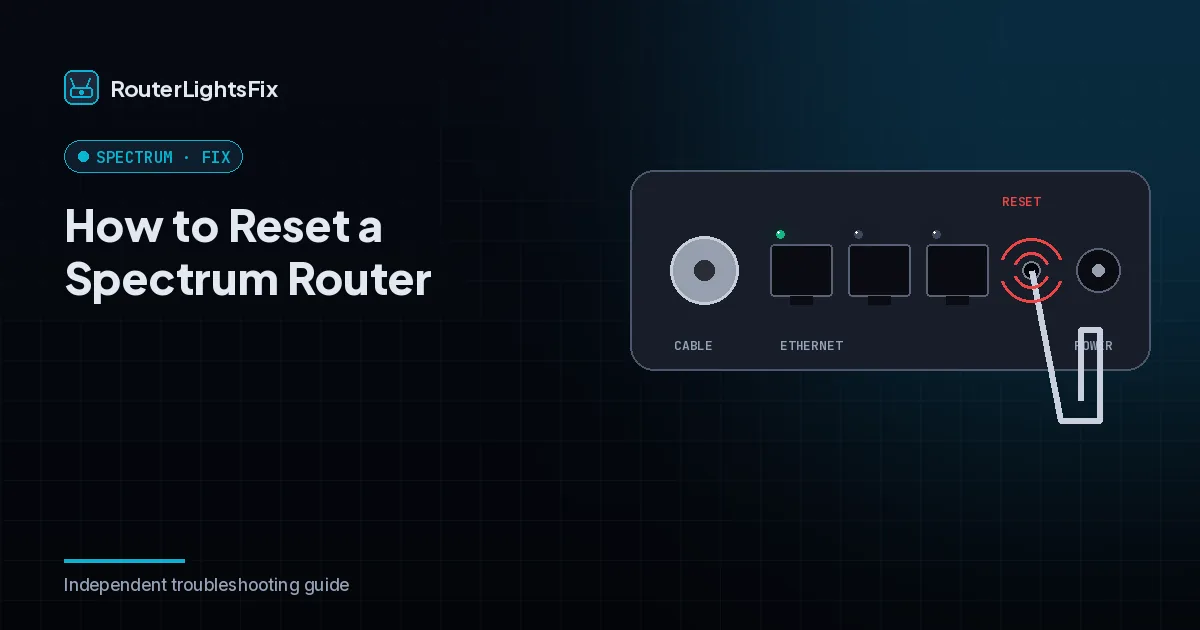
How to Reset a Spectrum Router
Learn how to restart or factory reset a Spectrum router with a power cycle, the My Spectrum app or the reset button, and what you lose after a reset (2026).
Read the fix →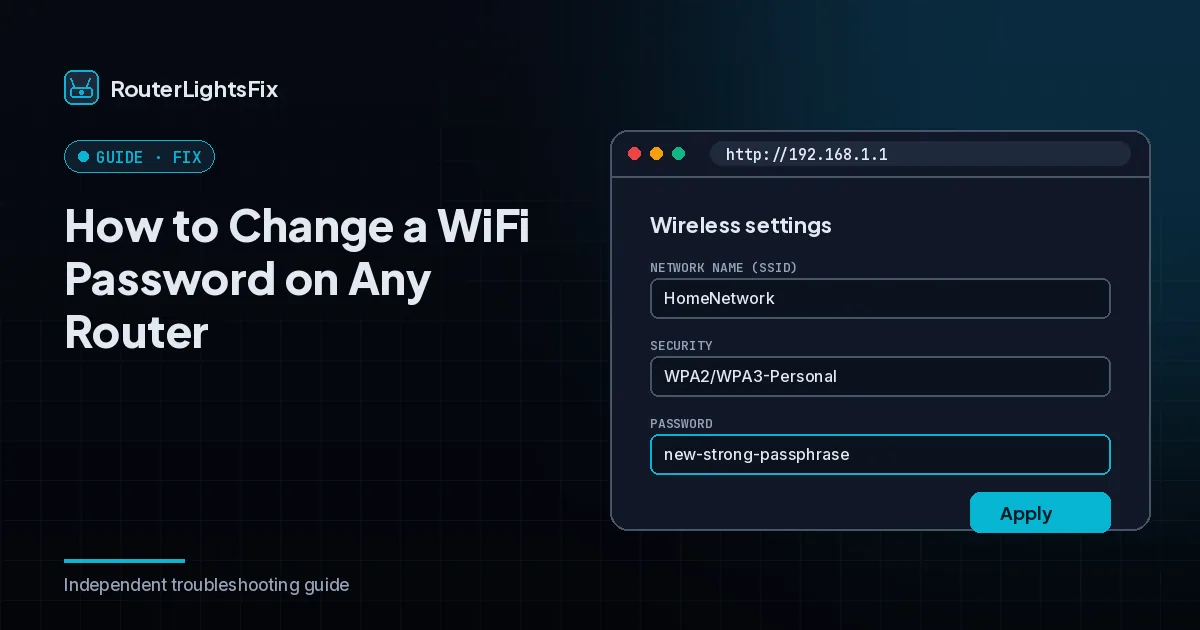
How to Change a WiFi Password on Any Router
Change your WiFi password from your router settings or provider app. Step-by-step for any router, plus how to pick a strong password and reconnect devices.
Read the fix →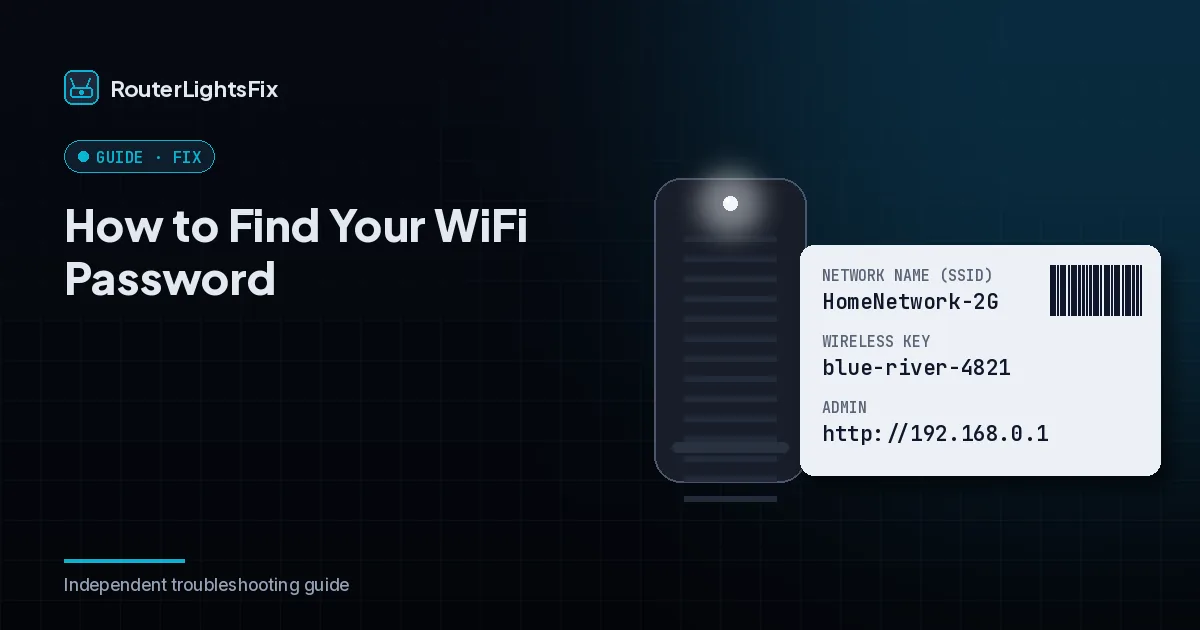
How to Find Your WiFi Password
Find your WiFi password on the router label, in your router settings or on Windows, Mac, iPhone and Android with the step-by-step methods in this guide.
Read the fix →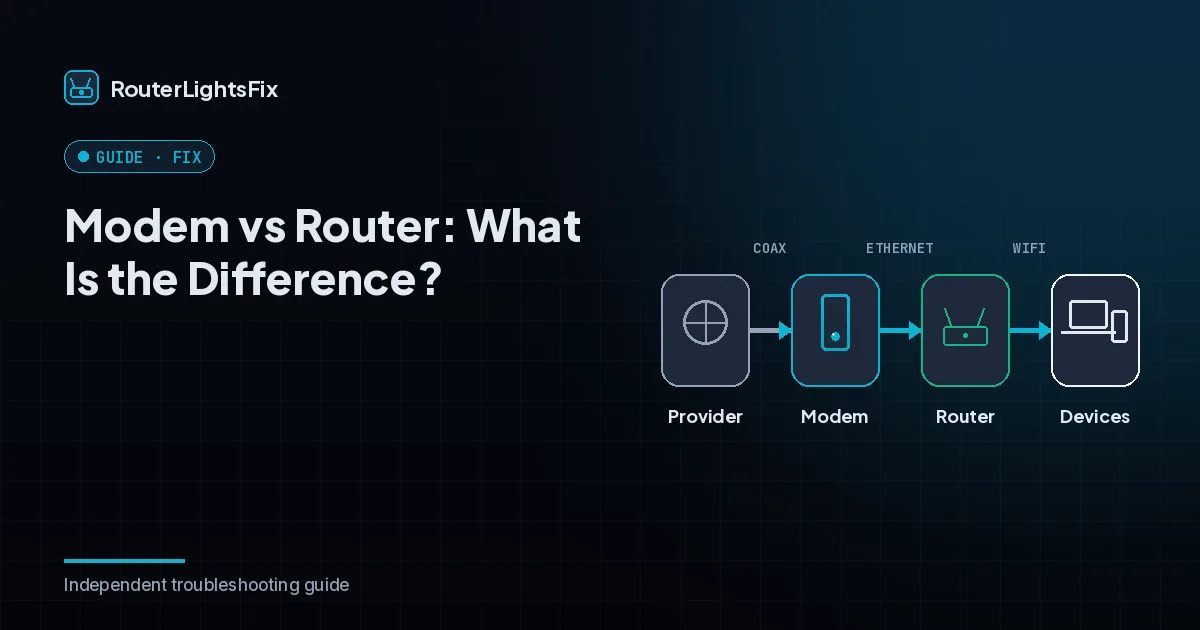
Modem vs Router: What Is the Difference?
Modem vs router explained in plain English: what each one does, how they connect, what a combo gateway is and how to tell which device is failing (2026).
Read the fix →
How to Restart or Reset a Router
Learn how to restart a router safely, when to factory reset it and what you lose. Includes the correct unplug order for a modem and a router for 2026.
Read the fix →How we write our guides
We test the logic of each fix against the provider's own published guidance where it exists, we explain which steps are safe and which erase your settings, and we tell you when it is time to contact your provider. We do not ask you to call unofficial phone numbers, and we do not ask for account details. Read more on our about page.
The bottom line
Most router problems are a lost connection, a loose cable or a device that needs a clean restart. Work from the wall outward, restart the modem before the router and only reset as a last step.
Reset (factory reset) erases your WiFi name, password and settings. Restart first; reset only as a last step.
FAQ
Frequently asked questions about router problems
What are the most common router problems?
The most common problems are a lost internet connection, a blinking red or orange light, slow or dropping WiFi, a forgotten password and a router that needs a restart. Most are fixed by checking for an outage, checking cables and restarting the modem then the router.
How do I fix a router that is not working?
Check for an outage, look at the lights, reseat the cables, restart the modem and then the router, and reset only if that fails. If it still does not work, contact your provider.
Is my problem the modem or the router?
Connect a computer directly to the modem with an Ethernet cable. If the internet works, the router is the likely problem. If not, look at the modem and the provider connection.
Is this site affiliated with my internet provider?
No. We are independent and not affiliated with or endorsed by Spectrum, Xfinity, AT&T, Cox or any other provider. Names are used only to identify the equipment we help with.