 RouterLightsFix
Cox Router or Modem Blinking Orange: What It Means and How to Fix It
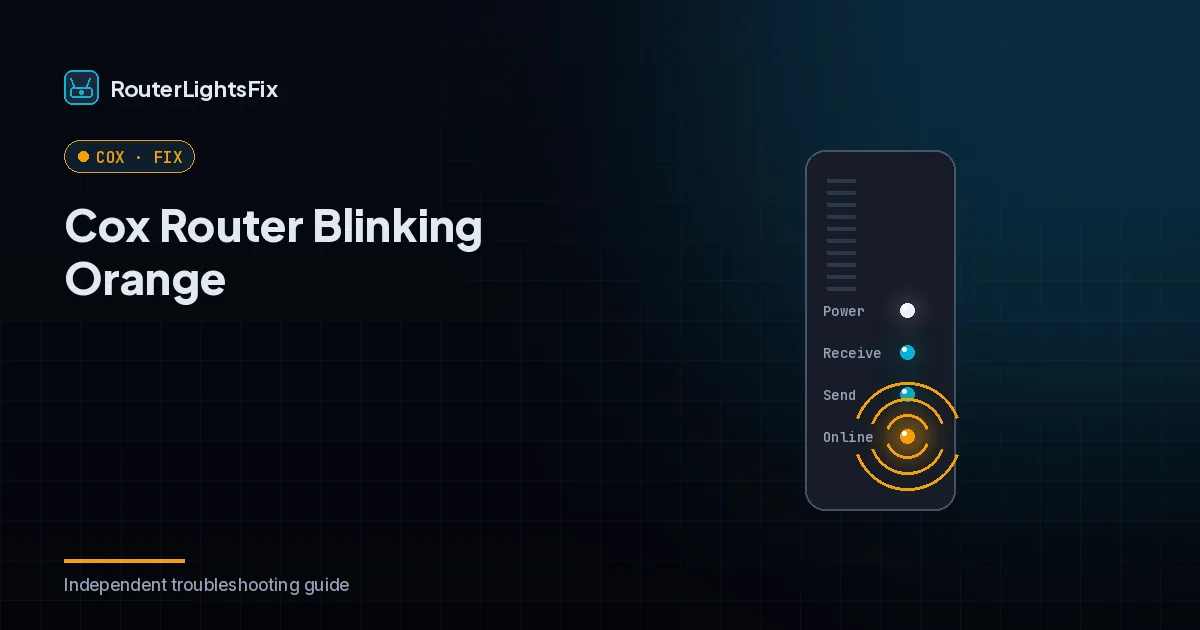
A blinking orange light on a Cox modem or router means the device is on and trying to connect to the Cox network but has not finished. Right after a restart it is normal; when it lasts, it points to an outage, a cable problem, an update or a modem that Cox has not provisioned.
This applies to Cox-provided gateways such as the Panoramic Wifi gateway and to customer-owned modems. Light behavior varies by model, so check your model's guide for details.
Common causes of a Cox modem blinking orange
The modem is still booting; wait up to five minutes
A loose, damaged or low-quality coax cable
A Cox outage in your area
A firmware update in progress
A weak signal, splitters or heavy congestion
A new customer-owned modem that has not been provisioned
Aging or failing hardware
Step-by-step fixes
1. Wait five minutes
After power-up, allow a full five minutes. Newer modems can take up to ten on first setup. Do not unplug during a firmware update.
2. Power cycle
Unplug the power cord for 60 seconds, plug it back in and wait three to five minutes. If you have a separate router, restart it after the modem is online.
3. Check the cables
Tighten the coax at the wall and the modem. Use an RG6 coax cable rather than an older RG59 type. Reseat the Ethernet cable and replace any damaged cable.
4. Check for a Cox outage
Use the Cox app or Cox's outage page on mobile data. If there is an outage, wait for service to return.
5. Bypass splitters and try another outlet
Connect the modem directly to the wall outlet. If that works, replace the splitter. Also try another coax outlet in the home.
6. Restart from the Cox app
The Cox app can restart your gateway remotely. Use it if you cannot reach the device.
7. Verify provisioning for your own modem
If you bought your own modem and it blinks indefinitely, call Cox with the modem's MAC address (printed on its label) to be sure it is registered on your account.
8. Factory reset only if advised
A factory reset erases settings and can leave a Cox-provided gateway waiting to be provisioned. Do it only if Cox support recommends it, or for a customer-owned modem when nothing else has worked.
When to contact Cox
If the light is still orange after these steps, ask Cox to check signal levels, send a refresh and schedule a technician if needed. Defective Cox-provided equipment is normally replaced at no charge.
The bottom line
Orange is a connecting state. Wait, restart, fix the coax path, check the outage status and verify that your modem is provisioned before you escalate.
Frequently asked questions about cox router blinking orange
Why is my Cox router blinking orange?
Blinking orange means the device is powered on and trying to connect but has not finished. Common causes are startup, a loose coax cable, an outage, a firmware update or a modem that has not been provisioned.
How long should I wait?
About three to five minutes after a restart, and up to ten for some newer modems on first setup.
Can a bad coax cable cause blinking orange?
Yes. Use an RG6 coax cable, tighten it at both ends and replace damaged cable.
Why does my new modem blink orange forever?
Customer-owned modems must be provisioned on your Cox account. Contact Cox with the modem's MAC address.
Should I factory reset a Cox Panoramic gateway?
Not unless Cox tells you to. A reset can leave the gateway unprovisioned until Cox pushes its settings again.