 RouterLightsFix
How to Change Your WiFi Password on Any Router
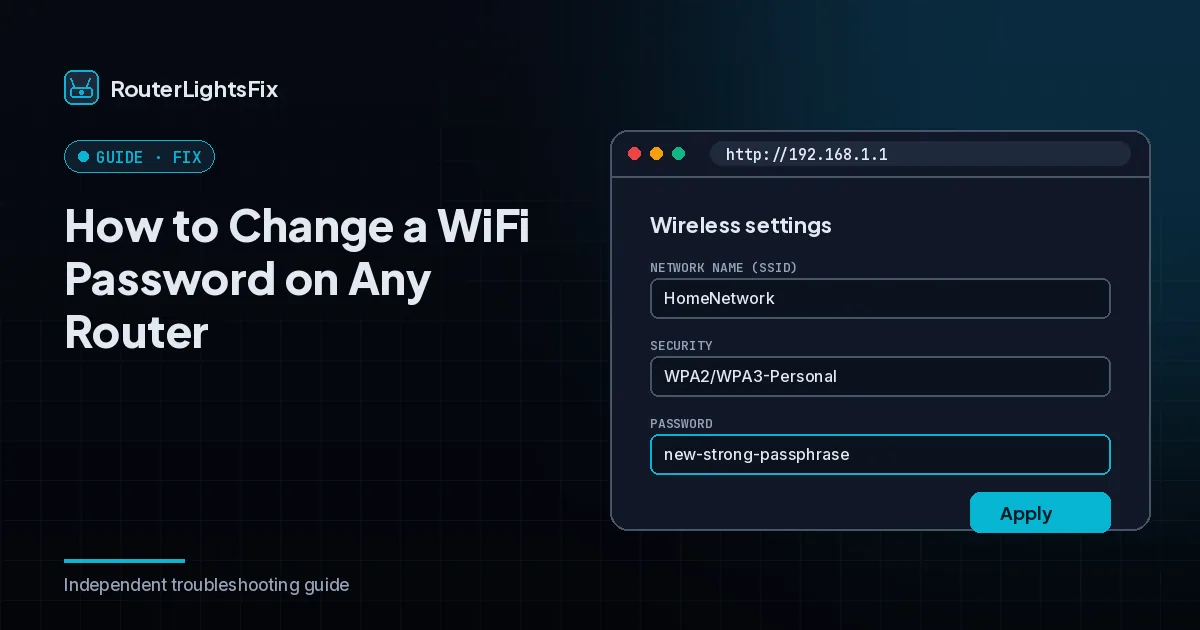
Changing your WiFi password is one of the easiest ways to secure your network, and it takes a few minutes. You do it in your router's settings, or in your provider's app if the router is provider-managed. This guide covers both.
Before you start
Have your router's admin login handy (usually on the label) and a list of devices you will need to reconnect. If you use a provider's app, sign in with your account.
Change the password in the router settings
Connect to your network, ideally by Ethernet, since WiFi will drop when you save.
Open a browser and enter your router's address, commonly 192.168.1.1, 192.168.0.1 or 10.0.0.1, or the address on the label (see how to log into your router).
Sign in with the admin username and password.
Find the Wireless, WiFi or Wireless Security section.
Enter a new password in the WiFi password (or key or passphrase) field.
Select WPA3 or WPA2 as the security type.
Save or apply the changes.
Reconnect your devices with the new password.
Change it in your provider's app
If the router is provider-managed, look for a WiFi or Network section in the provider's app or account, choose your network, edit the password and save. Our guides for Spectrum and Xfinity give the exact steps for those providers.
Choose a strong password
Use at least 12 characters and make it a passphrase of several unrelated words plus a number. Avoid names, birthdays and the default label password. Do not reuse a password from another account.
Change the network name too
Wireless settings also let you change the network name (SSID). Avoid using your address or full name.
After you change it
Every device disconnects. Forget the network on each one and reconnect with the new password. Remember smart plugs, cameras, printers and streaming sticks; some require setup in their own app.
Extra security steps
Turn on a guest network for visitors, keep the router's firmware up to date, and change the default admin password. Do not leave remote management on unless you need it.
The bottom line
Log into the router or provider app, change the password on the wireless settings page, choose WPA3 or WPA2, and reconnect your devices.
Frequently asked questions about how to change wifi password
How do I change my WiFi password?
Log into your router's settings page or your provider's app, open the wireless settings, enter a new password and save. Then reconnect your devices.
What is the default router login?
It is usually printed on the router label. Common addresses include 192.168.1.1, 192.168.0.1 and 10.0.0.1.
What security type should I choose?
Use WPA3 if available, or WPA2, and avoid older WEP or open networks.
What if I forgot the router admin password?
Check the label for the default. If you changed it and lost it, a factory reset returns it to the default but erases your settings.
Do I need to change my password on all devices?
Yes. Every device disconnects when you save the new password and must be reconnected.