 RouterLightsFix
How to Reset a Spectrum Router (Restart vs Factory Reset)
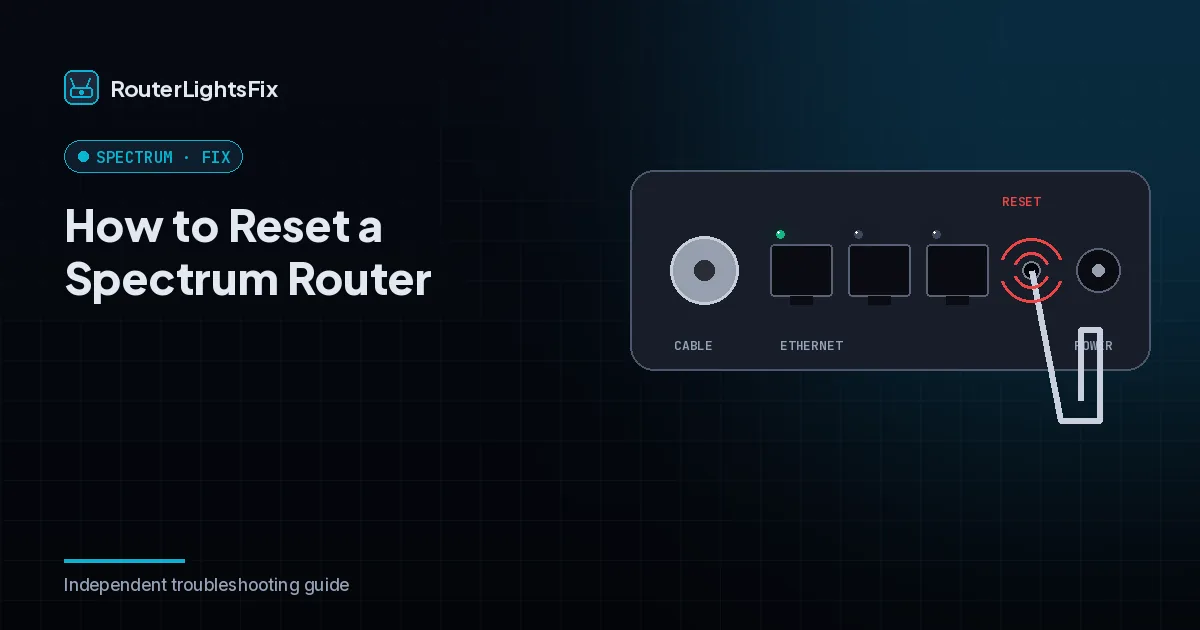
Resetting a Spectrum router can mean two very different things: a restart, which is safe and keeps your settings, and a factory reset, which wipes everything. Most problems only need a restart. This guide shows both, so you do not erase your WiFi setup when you do not have to.
Steps vary slightly by router model, so use the label on your router if anything looks different.
Restart or factory reset: which do you need?
| Action | What it does | Use it when |
|---|---|---|
| Restart (power cycle) | Turns the router off and on; settings stay | Slow, dropped or blinking light |
| App reset | Spectrum restarts the device remotely | You cannot reach the router |
| Factory reset | Erases WiFi name, password and settings | Restart failed and the light will not clear |
How to restart a Spectrum router (power cycle)
Unplug the power cord from the router. If you have a separate modem, unplug it too.
Wait 60 seconds so both devices fully clear.
Plug in the modem first and wait until its Online light is solid, usually two to five minutes.
Plug in the router and wait a few minutes for the light to turn solid blue.
How to reset a Spectrum router from the My Spectrum app
Open the My Spectrum app and sign in.
Go to your Services, then Internet.
Choose your equipment.
Select the reset or restart option and confirm.
Menu names change from time to time, but the option lives under your internet equipment. This method is handy when you are away or cannot reach the router.
How to factory reset a Spectrum router with the reset button
Only do this if a restart did not solve the problem.
Find the small recessed reset button on the back of the router.
Press and hold it with a paperclip for about 10 seconds, or the time your model specifies.
Release it and wait up to five minutes for the router to reboot.
Reconnect your devices using the default network name and password printed on the router's label.
Use the My Spectrum app to set a new WiFi name and password (see our guide to changing your Spectrum WiFi password).
What you lose after a factory reset
Your custom WiFi name and password return to defaults, any custom settings are erased, and if you use WiFi pods they may need to be paired again. Write your settings down before you reset if you want to restore them.
If the reset does not fix the problem
If the router still shows a red or blinking light after a reset, check whether the modem is online and whether Spectrum has an outage. Then read our guides on a Spectrum router blinking red or the Spectrum troubleshooting hub. If the router is leased, Spectrum replaces faulty units.
The bottom line
Restart first, use the app when you are remote, and factory reset only as a last step. Always bring the modem back before the router.
Frequently asked questions about how to reset spectrum router
How long does it take to reset a Spectrum router?
A restart takes about five to ten minutes including the time for the modem to settle. A factory reset takes up to about five minutes to reboot, and then you must set up your WiFi again.
What is the difference between restarting and resetting a Spectrum router?
A restart (power cycle) turns the device off and on and keeps your settings. A factory reset erases your WiFi name, password and custom settings and returns the router to its defaults.
Will I lose my WiFi password if I reset my Spectrum router?
Yes, a factory reset returns your WiFi name and password to the defaults printed on the router label. A simple restart does not change them.
How do I restart my Spectrum router without unplugging it?
Use the My Spectrum app: open your internet services, choose your equipment and select the restart or reset option. This restarts the device from Spectrum's side.
How long should I hold the reset button?
Many Spectrum routers need about 10 seconds with a paperclip, and some models specify longer. Follow the time on your model's label or Spectrum's guide for that model.