 RouterLightsFix
How to Log Into Your Router: Find the Address and Sign In
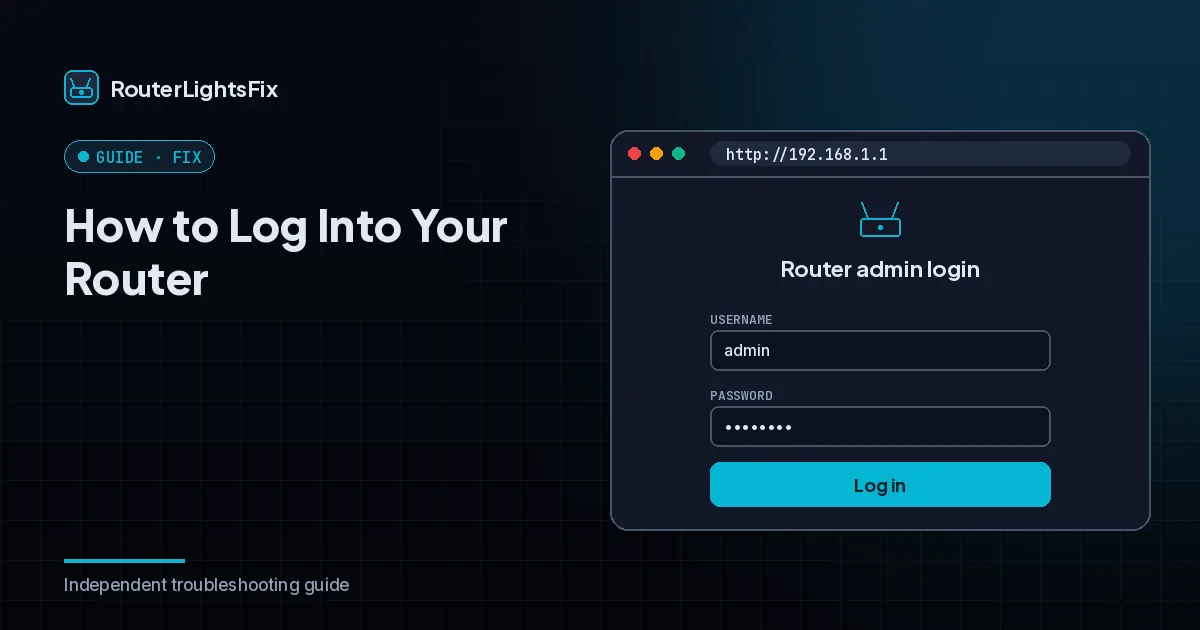
Logging into your router lets you change your WiFi name and password, view connected devices and adjust settings. It takes only a browser and the router's address. Some provider-managed routers limit what you can change and push you to the provider's app instead, so if you cannot log in, check the app first.
Step 1: connect to the router
Connect to the router's WiFi, or better, plug a computer in with an Ethernet cable. You must be on the router's network to reach its page.
Step 2: find the router's address
The address is usually printed on the label, and common defaults are 192.168.1.1, 192.168.0.1 and 10.0.0.1. You can also find it on your device: on Windows, run ipconfig in the command prompt and look for Default Gateway; on a Mac, open System Settings, Network, choose your connection and look for the Router address; on a phone, open the WiFi network details and look for Router or Gateway.
Step 3: open the login page
Type the address into your browser's address bar and press Enter. You should see a login page. If your browser warns that the connection is not private, that is normal for many routers; you are talking to a device on your own network.
Step 4: sign in
Enter the admin username and password. Check the label first. Many routers use admin as the username, but it differs. If you changed the password and remember it, use that one.
Step 5: what you can do
Common tasks include changing the WiFi name and password (see how to change your WiFi password), restarting the router, checking which devices are connected and updating firmware. Change the default admin password after you log in for the first time.
If the login does not work
Make sure you are connected to the router's network.
Try another address from the list above.
Try another browser, or a private window, or clear the cache.
Use a wired connection instead of WiFi.
Check the label for the correct username and password.
If you changed the admin password and lost it, a factory reset restores defaults but erases settings.
If your provider locks the router
Some providers manage the router through an app or website, and the local page may be limited. Use the provider's app for WiFi changes. Our provider guides cover Spectrum and Xfinity.
The bottom line
Connect, find the address, open it in a browser and sign in with the label credentials. Change the default admin password afterward.
Frequently asked questions about how to log into router
How do I log into my router?
Connect to your network, open a browser, type the router's address such as 192.168.1.1, and sign in with the admin username and password from the label or that you set.
What is my router's IP address?
It is the default gateway address of your network. Common ones are 192.168.1.1, 192.168.0.1 and 10.0.0.1, and it may also be printed on the router label.
What is the default router username and password?
It is usually printed on the label. Many routers use admin as the username, but it varies, so check your label.
What if the login page does not load?
Check that you are on the router's network, try another address, another browser or a wired connection, and clear the cache.
What if I forgot the admin password?
Try the default on the label. If you changed it, a factory reset restores the default but erases your settings.