 RouterLightsFix
How to Restart or Reset a Router: Step-by-Step Guide
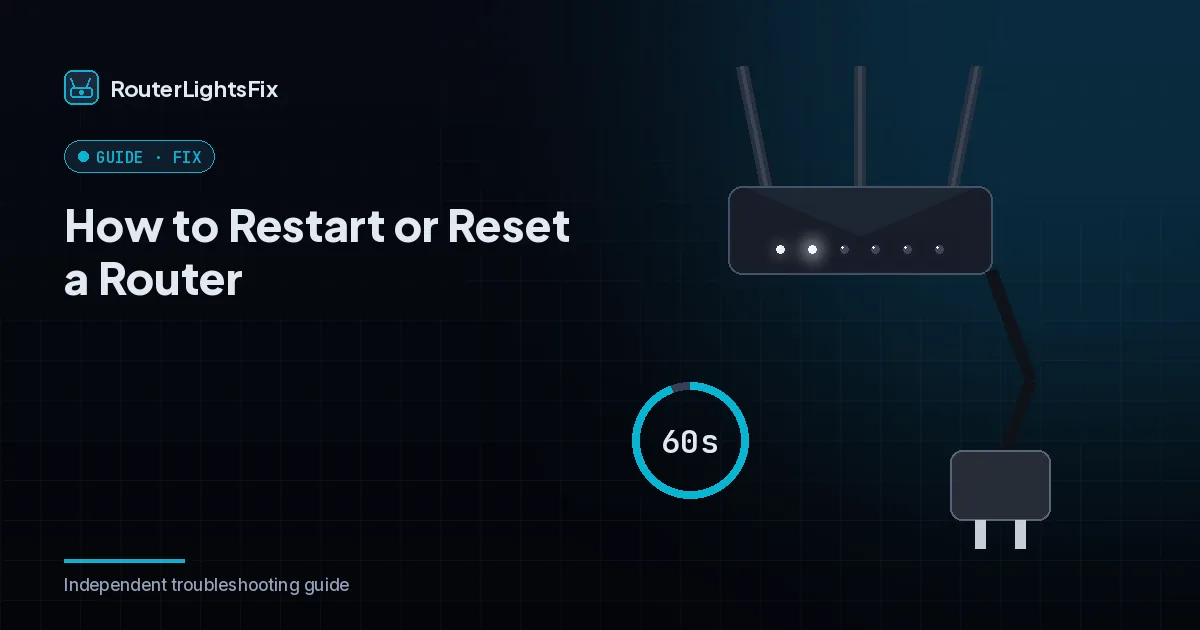
Restarting a router fixes a surprising number of internet problems, and it costs nothing. But restart and reset are not the same thing, and doing the wrong one can wipe your WiFi settings. This guide shows how to restart, how to reset and how to choose.
Restart or reset: the difference
| Restart (power cycle) | Factory reset | |
|---|---|---|
| What it does | Turns the router off and on | Erases all settings |
| Keeps WiFi name and password | Yes | No, returns to defaults |
| Use it when | Slow, dropping or lights look off | A restart failed |
| Time | About 5 to 10 minutes | About 10 minutes plus setup |
How to restart a router
Unplug the router's power cord (do not just press a button; unplugging is more reliable).
If you have a separate modem, unplug it too.
Wait 60 seconds.
Plug the modem in first and wait until its internet light is steady, usually two to five minutes.
Plug the router in and wait a few minutes until its light is steady.
Test the connection on a device.
Restarting many routers also has a software option in the admin page or the provider's app, which is convenient when you are away from the device.
How to factory reset a router
Only do this after a restart has failed.
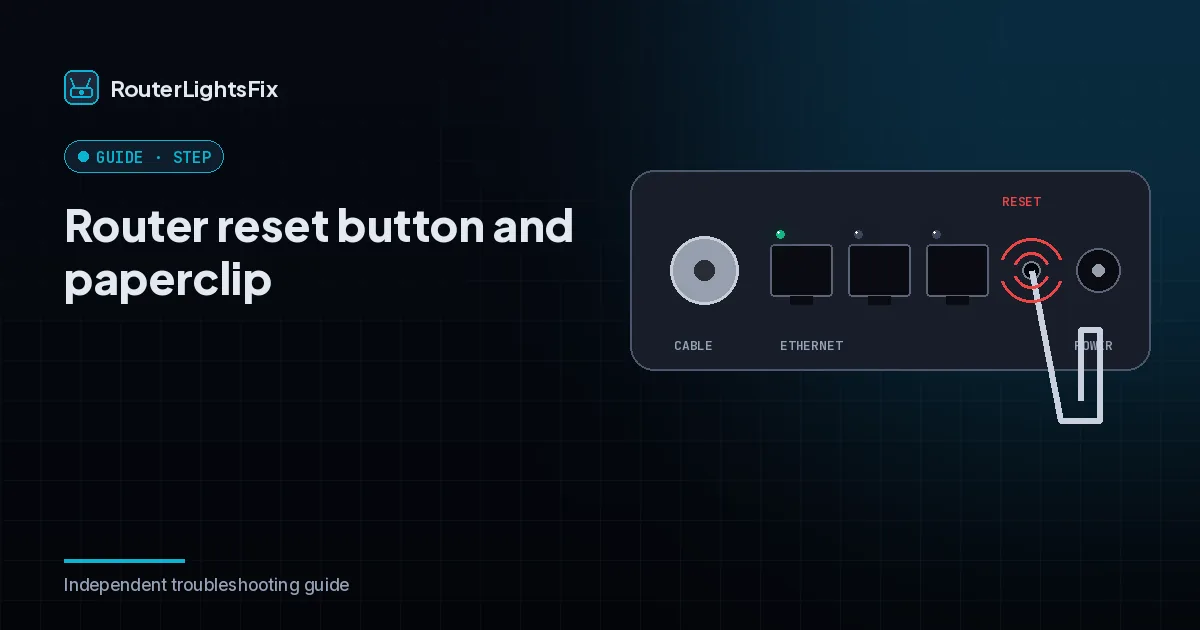
Find the small recessed reset button, usually on the back.
Press and hold it with a paperclip for about 10 seconds, or the time your model specifies.
Release it and wait for the router to reboot.
Connect with the default network name and password on the label.
Set up your WiFi name and password again and restore any settings.
What you lose after a factory reset
Your custom WiFi name and password, port forwarding, parental controls, custom DNS and other settings are erased. Some routers can also lose the provider's connection settings, so with provider-managed equipment it is better to use the provider's app or ask support. If you have mesh points or pods, they may need to pair again.
Provider-specific steps
Your provider's app can often restart or reset the equipment remotely. See our guides for Spectrum and Xfinity for the exact steps, or the AT&T and Cox pages.
If restarting does not help
Check the lights, look for an outage, reseat the cables and see why your internet is not working. If you are not sure whether the modem or the router is at fault, read modem vs router.
The bottom line
Unplug for 60 seconds, bring the modem back first and the router second. Factory reset only as a last step.
Frequently asked questions about how to restart router
How do I restart my router?
Unplug its power cord, wait 60 seconds, plug it back in and wait a few minutes. If you have a separate modem, restart it first and let it connect.
What is the difference between a restart and a reset?
A restart turns the router off and on and keeps your settings. A reset (factory reset) erases your settings and returns the router to its defaults.
How long should I wait before plugging the router back in?
Wait at least 60 seconds so the device clears its memory, then allow a few minutes for it to reconnect.
Will resetting a router delete my WiFi password?
A factory reset returns the WiFi name and password to the defaults on the label. A restart does not.
How often should I restart my router?
You do not need to on a schedule, but restarting occasionally, for example monthly, can clear minor glitches. Restart whenever the connection is slow or drops.